Assigning trips
After trip sessions exist, each trip can now be assigned.
See Trail staff if you still need people in the system, and the glossary for definitions.
Assigning a leader
- Go to Schedule → Schedule (the main schedule board for the selected season).
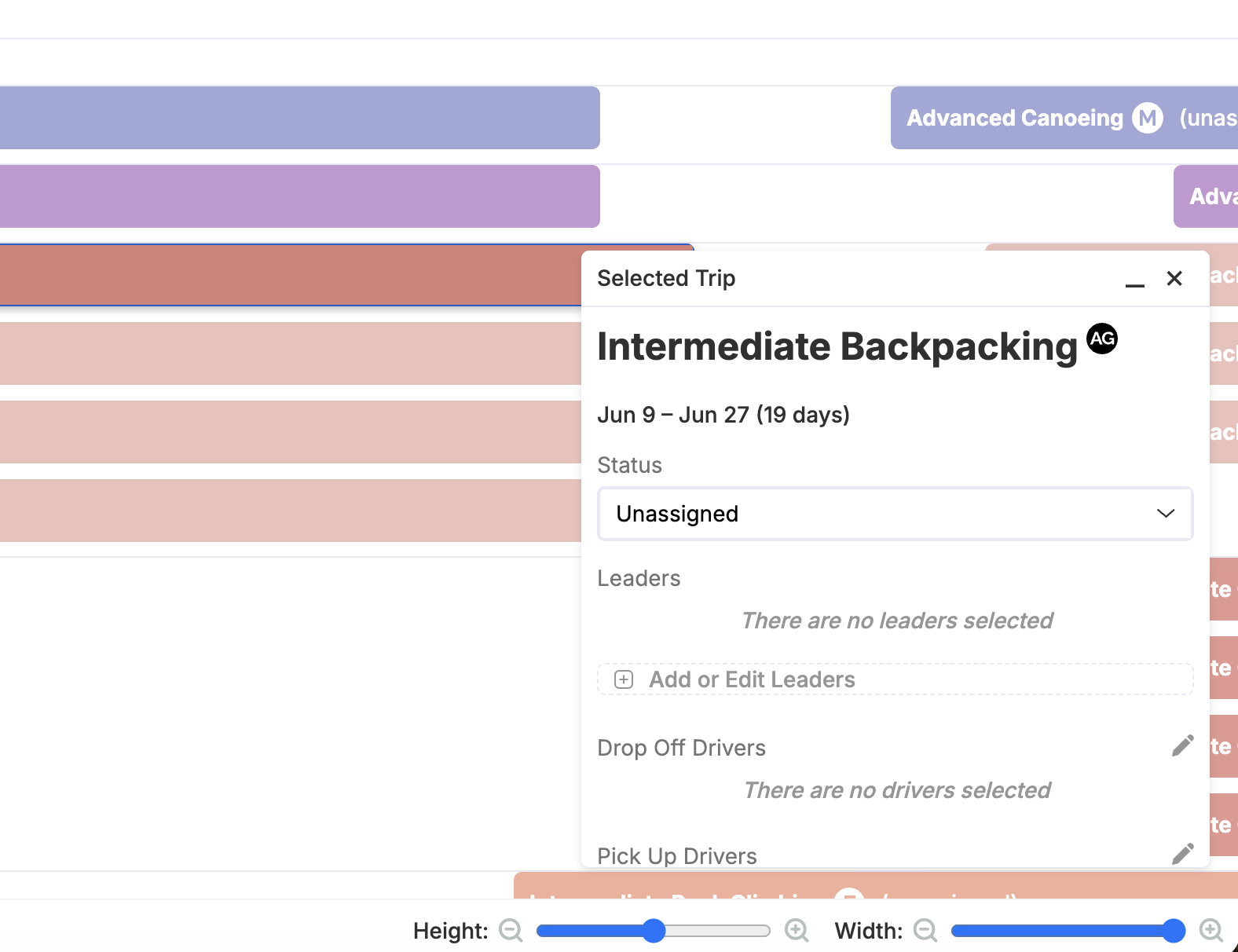
- Select a trip to open the selected trip modal, then click Add or Edit Leaders under the leaders section.
- The assignment modal will open, presenting you with leaders who are available to lead this trip. It will filter out people who are already assigned to something else,
tip
If your organization tracks leaders' trip-leading gender preferences, the leaders that will be shown here will be filtered to only those who lead trips of the gender in question.
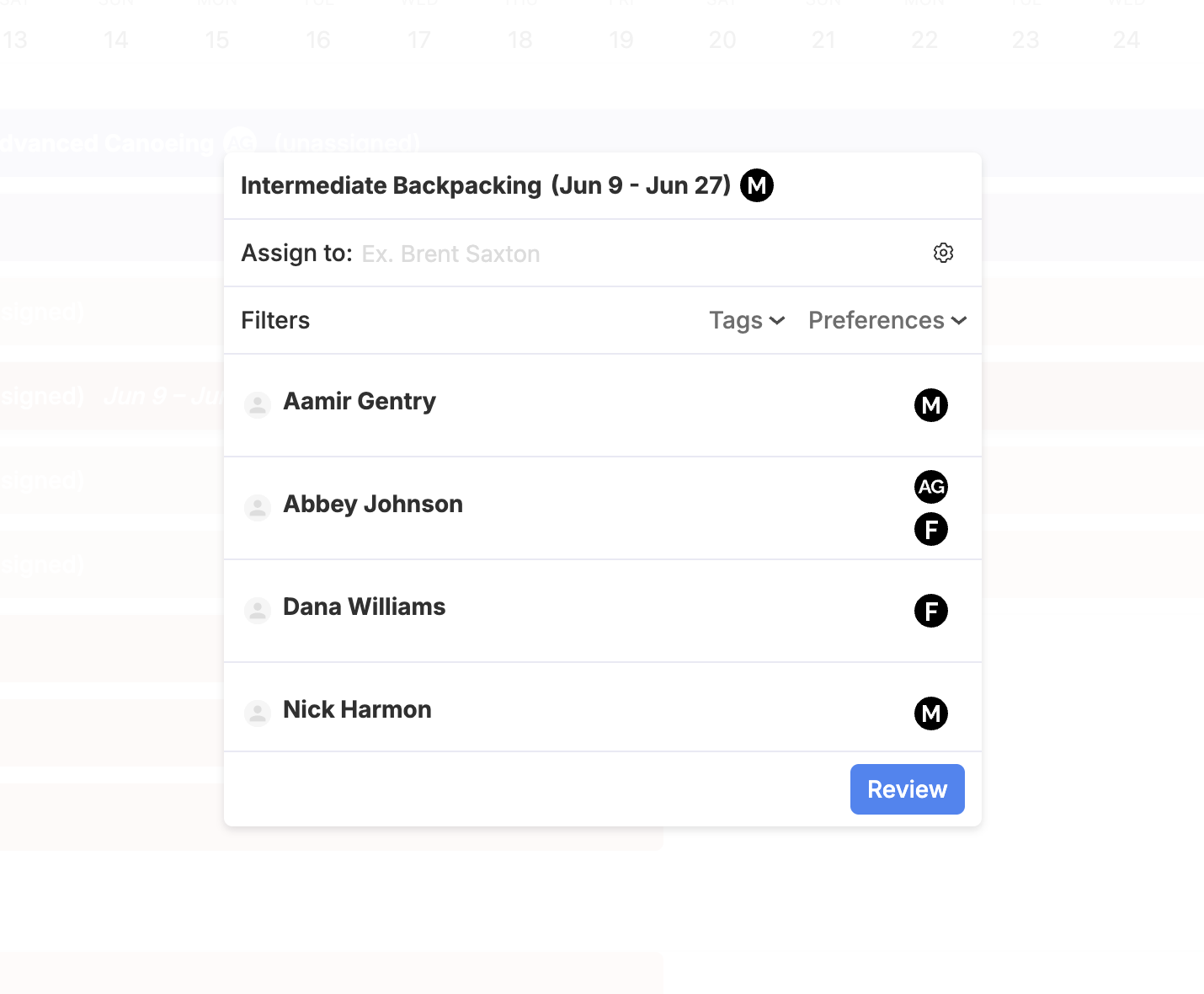
- Click to select the leaders you want, review the changes, then submit.
Removing an assigned leader
Either...
- De-select the leader in the assignment modal, review the changes, and submit. or
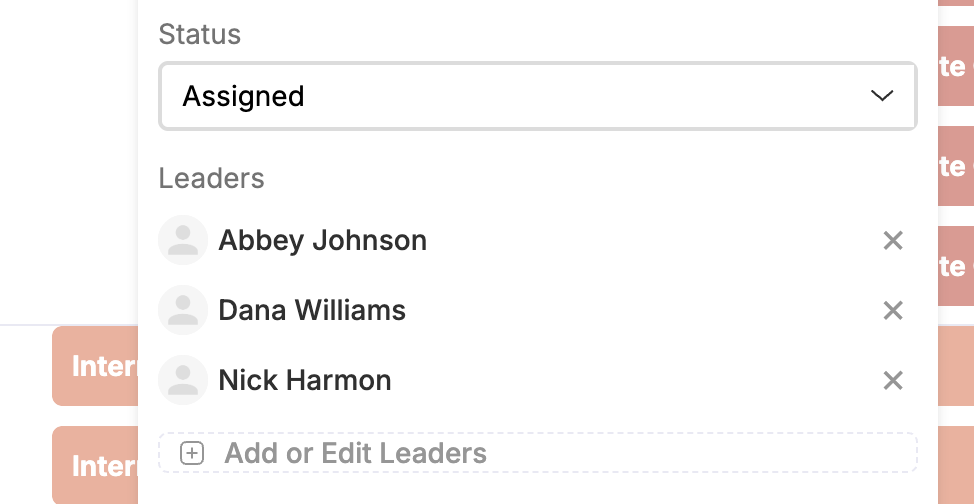
- Click the x button next to the leader’s name in the selected trip modal.
You need permission to edit trips (typically admin or editor). If the season is locked, trip assignment changes are blocked until it is unlocked.
Events
Events (trainings, transportation, etc.) use a similar assign flow from the schedule when you select an event instead of a trip.
Next steps
- Creating and inviting trail staff — add profiles and send invites.
- Glossary — Trip, Trail staff, Trip session, Event.