Creating and inviting trail staff
Trail staff are the people who lead your organizations programs. They have the Trail Staff role in the app so they can see their assignments, availability, and forms. Their version of the system doesn't include many of the administrative-focused features that yours does. You need an organization admin or editor to add them from settings.
See Assigning trips once profiles exist, and the glossary for the Trail staff definition.
Add from the Trail Staff page
- Select the season you are hiring for.
- Go to the Staff → Trail Staff page.
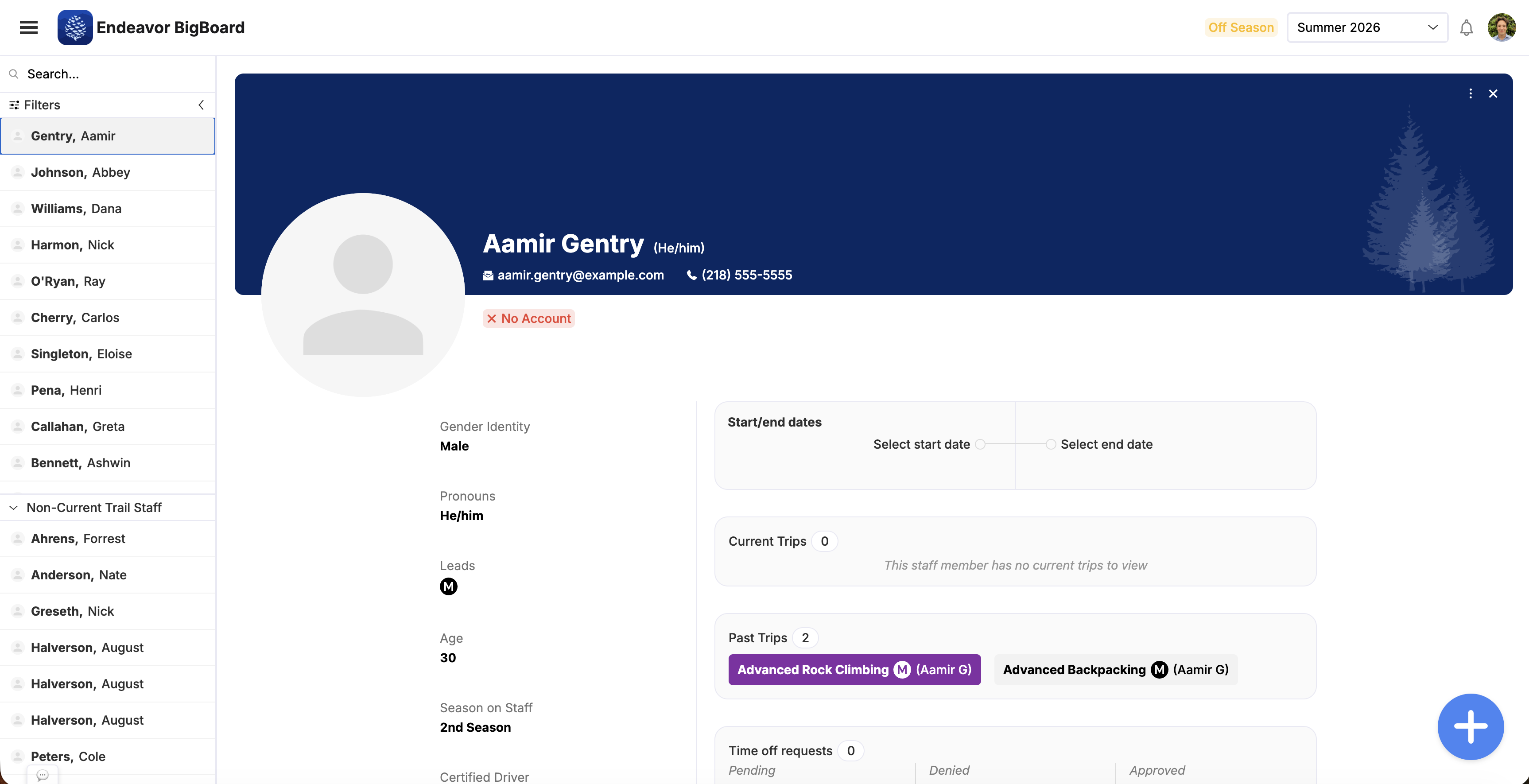
- Click the floating + button in the bottom right and choose New Trail Staff.
- Enter their first name, last name, and, optionally, their email. If you'd like to send them an invite, select Invite immediately (an email is required in that case).
- If your organization tracks trip-leading gender preferences, you can set their leadership genders here.
You can add trail staff without creating accounts for them. They can be assigned to trips and everything–they just wont be able to log in and see the published schedule, and submit time off, etc.
The Staff pages are only available to office users, admin, editors, and viewers. Only admin and editors are allowed to create, invite, and edit trail staff.
Invite from Users & Invites
Under Trail Staff Users, choose Add. Enter:
- First name and last name (required)
- Email (required for this flow)
- Optional trip gender preferences if your organization tracks them
Submitting creates the trail staff record and sends an invitation so they can accept and sign in. If something fails after the record is created, check the Invites table on the same page—pending invites for trail staff and office users appear there, and you can copy the invite link to send manually.
Office users (not trail staff)
Office users (admin, editor, viewer, etc.) are invited from the Office Users table on the same Users & Invites page via Invite user—that path is separate from trail staff.
Next steps
- Assigning trips
- Getting started — seasons and trip sessions
- Disabling gender-based trip assignments
- Glossary